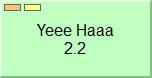
To play a jingle, simply click the button with its name:
You can also start playback by right-clicking and selecting Play.
While playing, it will turn green and stay pressed, so you know that it's ON AIR. The display will show the remaining playback time of the jingle, and will warn you when it reaches its end. Also, the VU-meters will display the level of the sound.
The green button jumps back and gets back its original color when the jingle reaches to the end and stops.
You can stop the jingle in several ways. Clicking it again or right-clicking and selecting and Stop while it's playing (green state) will stop the playback of the jingle. Pressing STOP ALL will do the same.
You can play several jingles at once. Just click on them in the order you wish, and they will start playing right away. There's no limit in how many jingles play at once. You can even play jingles from different palettes at the same time.
You can stop them one by one by clicking them again while they are playing, or stop all at once by pressing STOP ALL.

Note: This button STOPS ALL the audio output from Jingle Palette. This means that if you have Time announce or a Remote stream playing, they will be stopped also. Pressing ESCAPE button has the same effect as STOP ALL.
If you change the palette while jingles are playing, the corresponding buttons will stay pressed. You can stop the jingles by pressing it again, even if you are not in the palette from which the jingle was launched from.
Autorepeat mode can be turned on by clicking the Autorepeat button, just below the display:

This mode differs from the simple mode in the way that when clicking again the playing jingle (while it's green), instead of stopping, it will play again from the beginning. This is useful for radio DJs when they wish to play ON AIR with some jingles on the beat of some song.
In this mode the only way to stop the jingle is pressing STOP ALL. If you right-click on a jingle while this is on, you will see the option to autorepeat it.
If this is pressed, the jingles will be played only while they are "touched" by mouse or touchscreen.

Autorepeat and Touch play cannot work together. They cancel each other.
You can individually set playback mode (Autorepeat or Touch Play) for each jingle by right-clicking on it and click on the playback mode of the menu, or with buttons in the Options tab.
There are other playback modes that are individually settable for each jingle:
Play / Stop: Same as Simple playback
Play without stop: Start playback without stopping possibility (except with STOP ALL button), preventing accidental stopping jingle
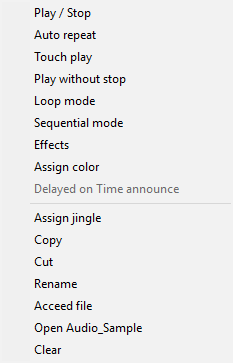
You can individually set playback mode for each jingle in the Options tab:
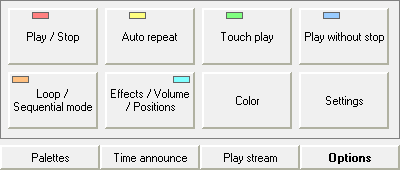
Individual playback mode overrides Autorepeat or Touch play modes (under the display).
A LED is lit up on the button, in right of Loop LED for each playback mode:
Red: Play / Stop (Simple playback)
Yellow: Autorepeat
Green: Touch play
Grayed blue: Play without stop
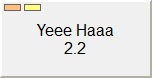
This function is useful if you want to fade a playing jingle automatically while another one starts playing. This function applies also to Jingle to play after... (Time Announce;playing a jingle will fade it out if playing).

The mix time is set by default to 1.5 seconds, but this value can be changed in the Settings.