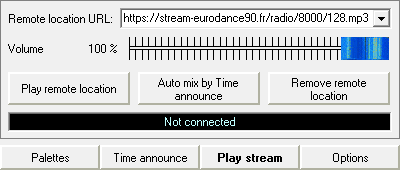
Remote streams can be played through internet or intranet with Jingle Palette. The supported formats for the streams are MP3, MP2, MP1, MPA, OGG, M4A, WMA, AIF, AIFF, FLAC and WAV audio (Shoutcast / Icecast streams).
On the Play Stream tab, you can type the URL of the remote file in the bar. Clicking the Play Remote Location button will start the connection with the server and play the file. In case of some error, the corresponding message will appear in the status box.
The fader allows you to set the stream volume. This setting is memorized between sessions.
Clicking the Auto mix by Time announce button will enable stream fading out when Time announce signal will play.
The address bar remembers all your URLs that you played in the past, so you can easily reuse them and don't have to type them in again. They are saved in the urls.txt file, in the program folder where Jingle Palette is installed (usually C:\Program Files\Jingle Palette or C:\Program Files (x86)\Jingle Palette). You can remove stream URL by deleting from this file, or directly use the Remove remote location button to remove selected URL from the list.
Note: https streams can be reached depending the TLS level handling of the Operating System, so if the stream URL can not be reached with https, Jingle Palette will try with http.
Note: if your internet/intranet connection is lost during playback, it will be stopped automatically after the remaining sound from the download memory buffer will empty.
Warning! The remote location playback will be stopped when STOP ALL button is pressed.