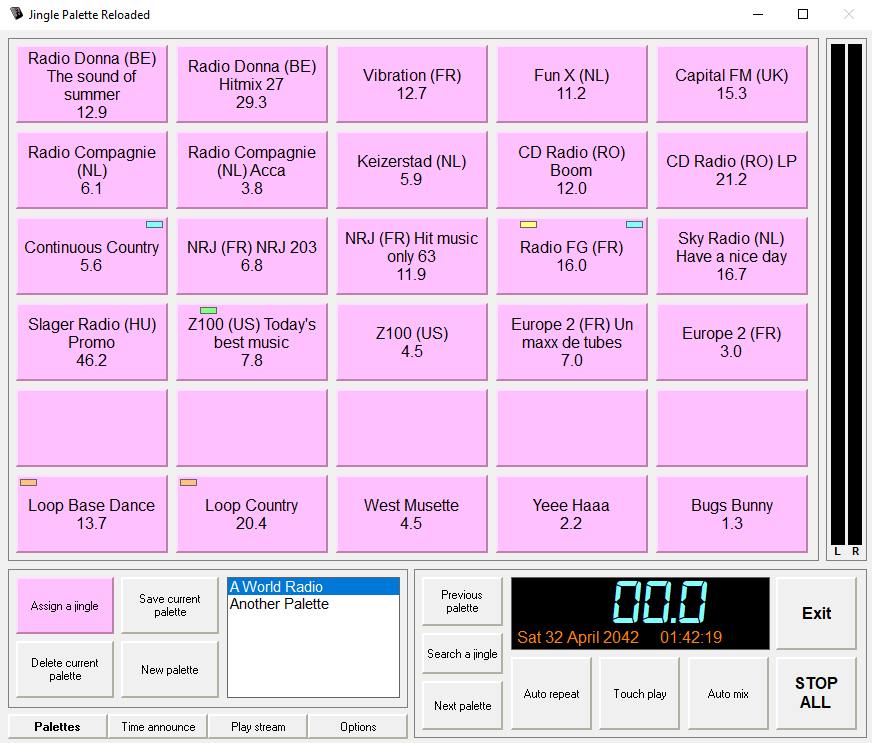
Each button can have its own jingle but Jingle Palette does not limit to that. You can save the jingles from the 30 buttons in palettes that you can load very easily.
Don't forget that a floppy icon will be displayed on each change (assign/clear button, but also effects, color, loop and play mode...). If you want to save these changes, you can directly click on the floppy icon to save the actual palette with the same name, or on the Palettes tab, click Save current palette if you want to give it another name (in this case, the original palette won't be modified). If you want to discard changes, just change palette (or click on the actual palette name in the palettes list if you have only one palette).
If you want to have a jingle on a button here's what you have to do: on the Palettes tab, Click Assign Jingle to Button. All the buttons will turn pink, that will allow you to pick a button where you want to put a new jingle:
So click the desired button, regardless if it's empty or has already a jingle. A file requester appears that allows you to select a jingle from your computer. It can be any MP3, MP2, MP1, MPA, OGG, M4A, WMA, AIF, AIFF, FLAC and WAV audio file. Modules (MOD, MO3, S3M, XM, IT, MTM) are playable too. Note that it is preferable that jingles are located in the Audio_Sample subfolder of install folder. Otherwise, there is an option in Settings, for copying files in Audio_Sample\Import on saving palette if they were outside from Audio_Sample folder. Right-clicking on a jingle button and selecting Assign jingle will bring you up the same file requester:
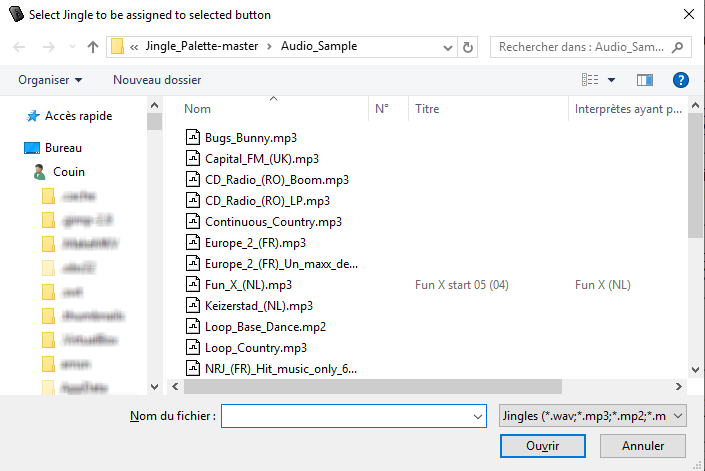
Choosing the jingle file and pressing Open will simply put it on the button, that will be ready to play.
Dragging and dropping a jingle file directly onto a jingle button will assign the jingle to the button. Note that the target jingle button must to be released (so its jingle is not playing) to do it.
This way you can fill all the buttons with jingles and create a palette of jingles.
Please use jingles from safe places only, like local hard drives or servers through high-speed networks. Do not assign jingles from CD-ROMs, or unsafe network locations.
You can move a jingle from a button to another. Hold Ctrl key on your keyboard, the display will tell you to select the jingle to move. Click on it, and click on the button where you want to move the selected jingle. Right-clicking on a jingle button and selecting Cut and Paste, will do the same.
You can copy a jingle from a button to another. Hold Ctrl and Shift keys on your keyboard, the display will tell you to select the jingle to copy. Click on it, and click on the button where you want to copy the selected jingle. Right-clicking on a jingle button and selecting Copy and Paste, will do the same.
Note: the source jingle and target button must not playing to allow jingle moving or copying. Also, don't worry, jingles won't play since you hold the Ctrl or Ctrl and Shift keys when clicking on buttons.
You can rename a jingle directly in Jingle Palette. Hold Shift key on your keyboard, the display will tell you to select the jingle to rename. Click on it, a form will appear to allow you to rename the jingle. Denied characters by Windows (like for example / or *) will be replaced by _ . " (double quotes) will be replaced by two ' (single quote). Closing the window will rename the file and reload the jingle on its button. Also, it will save the palette automatically, so if you have some other unsaved palette modifications (floppy icon is displayed), they will be saved at the same time. Right-clicking on a jingle button and selecting Rename, will do the same.
Note: the jingle to rename must not playing to allow jingle renaming. Also, don't worry, jingles won't play since you hold the Shift key when clicking on button. Be careful, if the renamed jingle is used in others palettes, you will have to assign it again onto these others palettes.
If you want to clear a button that has a jingle on it, move focus (red border) with the arrow keys and select it, and press the Delete key on your keyboard. You will be asked to confirm your choice. Right-clicking on a jingle button and selecting Clear, or holding ALT key and click on the jingle button (the jingle won't play since you hold ALT when clicking), will do the same.
If you assigned jingles to buttons, you can save these assignments in palettes that you can reload easily with a single click. You can also save an empty palette.
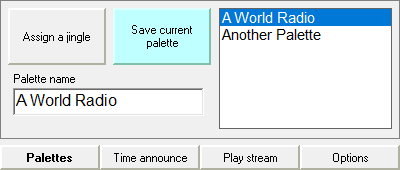
Click Save current palette (with left mouse button to copy/replace, with right to rename). A textbox will appear on it that will allow you to type in a name for your palette. If it was an existing palette, its name will be automatically filled in the textbox. Press ENTER or click again on Save current palette to save it. Your palette will appear on the right (if it was not the case), in the listbox, and will load the jingles when you select a palette.
If you want to start from scratch, with all buttons empty, click New palette. Current playback will stop and all the buttons will be cleared. You can now assign jingles to the empty buttons with the steps described above.
Your saved palettes will not disappear, you can reload them anytime. Use this when creating new palettes.
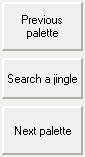 | You can save as many palettes as you wish. For example, you can save one for each show you have and give the title of the show to the palette. Or every DJ can create a personalized palette for him/herself. Changing palettes can be done by directly clicking on them in the listbox, or by clicking Previous Palette or Next Palette. The highlight in the listbox will move up or down accordingly and load the highlighted palette. You can also search a jingle from its name, it will reveal the palettes that contains it. |
Note: you can click Previous Palette or Next Palette even if the Palettes tab is not visible.
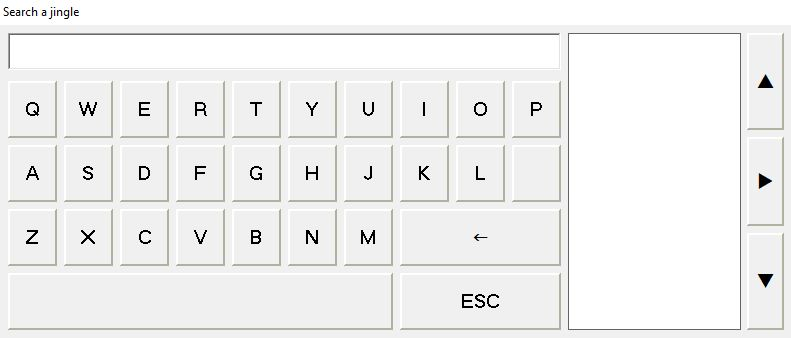
Click Search a jingle (or hit F3 on your keyboard). A window will appears with a virutal keyboard. Type (with virtual or physical keyboard) the jingle name you want to find, and the palettes where the jingle is found will be displayed. Click on the palette you want, the window will close and the jingles buttons where the jingle is, will blink 3 (by default) times to show themselves.
An optional line appears under the searchbox title bar, to show you when the window will autoclose after inactivity. This line can be set in the Settings, Interface.
If you want to delete a palette, select it and press DELETE on your keyboard, or click on Delete current palette button. A dialog box will appear, asking you to confirm your action:
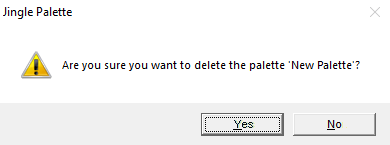
If you answer Yes, the selected palette will be permanently deleted. If you answer No, nothing will happen.
Note:deletion of palettes is permanent. Once deleted, they cannot be brought back. Palettes and their composition (not the audio files) are stored in the palettes.ini file, in the program folder where Jingle Palette is installed (usually C:\Program Files\Jingle Palette or C:\Program Files (x86)\Jingle Palette). However, this file is copied on each start of software (copied file is named palette_backup<1 to 5>.ini), 1 is the most recent backup, 5 the older one, you can use it to recover your palettes, by renaming it to palette.ini having previously deleted the file of the same name. If you want, you can also make a backup of this file before you start deleting any palettes, just to avoid mistakes.